Project P.I.T.T. Controller and Gamepad
Full gamepad support arrived in demo 0.2.8 — rebind and stay productive.
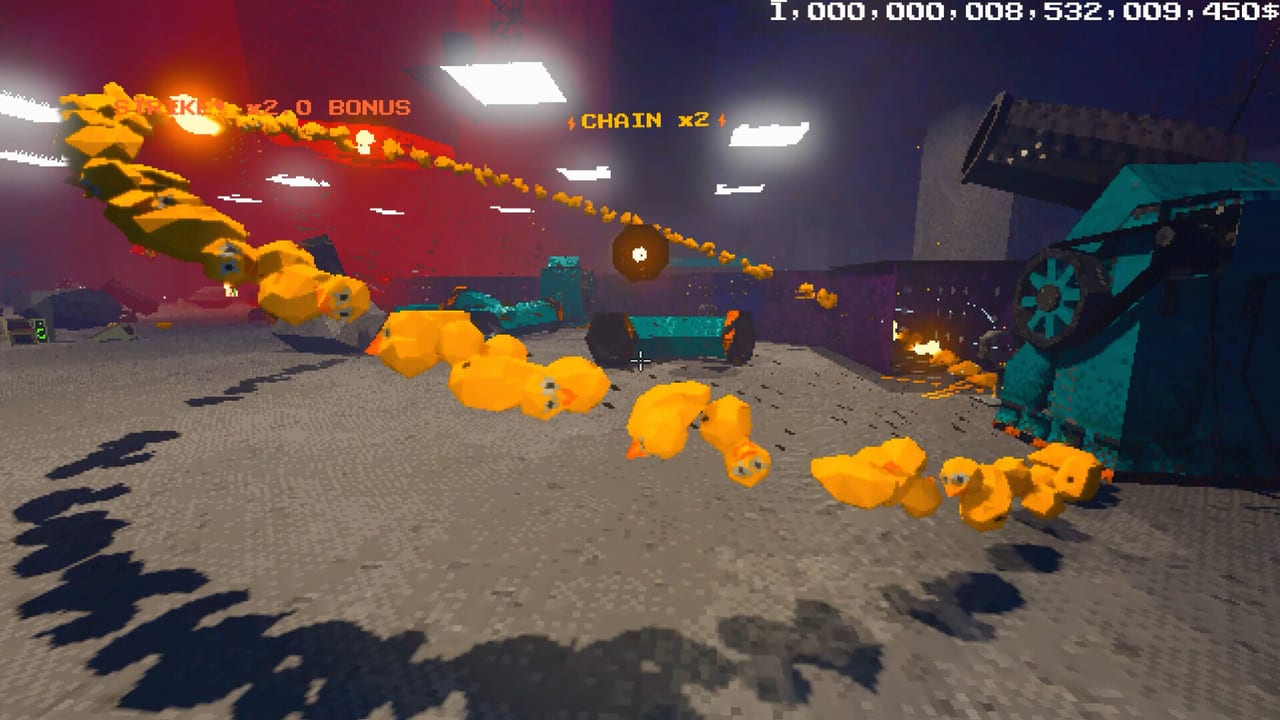
Project P.I.T.T. began as a mouse-heavy physics toy. Demo 0.2.8 made controllers first-class: menus, tooltips, and facility interactions work on gamepad with rebindable inputs. This guide helps DualSense, DualShock, Xbox, and generic pads survive Sticky panels without rage-quitting to keyboard mid-combo.
Keyboard still wins for micro-rotations for many players, but couch sessions and accessibility matter. Pair this page with Controls for the semantic actions (grab, throw, snap, interact) and Demo Changelog for why support suddenly exists.
Before you clock in on stick
- Connect the pad before launching so Steam Input / OS drivers settle.
- Open the in-game rebind screen and confirm look sensitivity feels calm near The Maw.
- Map a comfortable Interact, Grab/Drop, Throw, Rotate mode, and Snap — these are the five verbs that define intern competence.
- Keep Sprint and Crouch reachable; height routes punish slow repositioning.
Steam lists full controller support on the store page, including DualSense and DualShock notes. If a prompt looks keyboard-only, check you are on 0.2.8+.
Facility workflow on gamepad
Movement should feel like a first-person sandbox, not a twin-stick shooter. Lower look sensitivity until you can place a panel edge without oscillating. Use Snap liberally — free rotate exists for artistry, Snap exists for payroll.
Grab and carry along clear floors. Controllers exaggerate camera sway; walk wider arcs around magnets so you do not eat your own line. When throwing, hold a steady aim for a beat; Golf Club power control uses scroll on mouse and D-pad/triggers equivalents on pad — verify your bind before attempting the 15m unlock throw.
Menus and terminal shopping are slower on stick. After unlock notifications fire, pause automation, open the terminal, buy one item, exit, then rebuild. Multibuying while ducks jam behind you is how combos die. Use Unlock Progression to know why the list changed.
Hybrid setups that work
Many interns keep a mouse nearby for rotate precision while moving on stick. That is valid. Others rebind rotate to a radial or held modifier. Whatever you choose, practice the Getting Started ten-minute drill entirely on your chosen scheme before constructing fans.
Edge cases fixed in 0.2.8
Dev notes call out controller edge-case passes: tooltip adaptation, menu travel, and interaction prompts. If you still find a broken prompt, note the exact menu and action, update the demo, then report via Discord linked from Official Resources.
Accessibility and comfort
Steam categories mention adjustable text size, camera comfort, custom volume, and playable without timed input. Use those options when The Maw audio spikes during combos. Performance still matters — a smooth 60 FPS on LOW graphics beats a cinematic stutter on pad. See Performance Settings.
Practice checklist
- Rebind grab, throw, rotate, snap, interact.
- Place and sticky a panel using only the pad.
- Toggle three tools for Remote discovery practice.
- Attempt a controlled Maw throw for Golf Club distance.
- Run one combo cycle with How to Chain Combos without touching keyboard.
When the pad disappears into muscle memory, return to Automation Builds and stop blaming the stick for physics you have not stabilized yet.
Frequently Asked Questions
Quick answers about the full game, The Maw, and day-one patches.
Is keyboard required for Project P.I.T.T.?
No. Demo 0.2.8 supports full gamepad play with rebinds. Some players still prefer mouse for fine rotation.
My prompts still show keyboard keys.
Confirm demo version 0.2.8+, reconnect the pad, and check Steam Input. Reopen the rebind menu once.
Can I unlock Golf Club on controller?
Yes. Bind throw and power controls carefully, clear a 15m+ lane, and throw a product into The Maw.
Where are general key lists?
See the Controls guide for action names and default keyboard mappings, then mirror those actions on your pad.